My setup for the W50PRO smartwatch
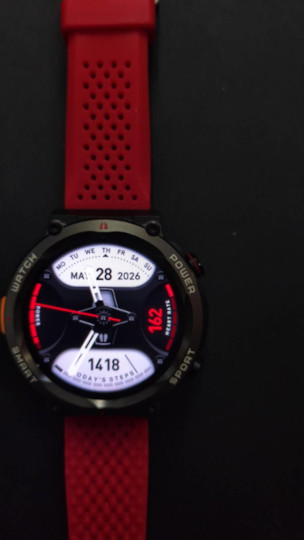 I got a smart watch as a present which I'd wanted to keep track of my daily walking exercise (steps) as well as heart rate and sleep patterns. Unfortunately it soon stopped working/charging. I had become attached to the steps feature and heartrate as well as the sleep monitor feature in the short time I had it, so I decided to buy another watch myself and found a cheap offering on Amazon that looked impressive.
Let me say first off-the-bat that I was pretty impressed with the looks, screen resolution, touchscreen, solid feel and features in the Blackview W70 (eg LED torch, water expulsion feature similar to that in an Applewatch); so much so that I went and bought myself a second - the roundfaced Blackview W50...
However, since it was not a well-known brand, made in China, and insisted upon itself that it was connected to the network before it would work properly, I was concerned how much - and what - data was being sent off, and to where. Was it a case of 'If it's free (or very low cost) it's likely you are the product.' ? Jump to the solution
'Cheap as chips' watch versus leading brand.
Let's first look at the Blackview W50 smartwatch compared to similarly specced Garmin watches:
Blackview W50 Smartwatch - Feature Analysis
Key Features:
- Military-grade durability: MIL-STD-810G certified, aerospace aluminum build, operates in temperatures from -30°C to 70°C
- Battery life: 960mAh battery with up to 100 days in extreme mode, 30 days in smart mode (or 'pinch of salt' mode)
- Display: 1.45-inch high-resolution TFT touchscreen (360x360 resolution)
- Special features: LED flashlight (300% brighter with 10M range), compass, AI voice assistant
- Connectivity: Bluetooth calling (answer/make calls directly), notifications
- Health monitoring: Heart rate, SpO2, sleep monitoring, stress tracking
- Fitness tracking: Over 150 sports modes
- Water resistance: IP68 waterproof (not for sauna, hot showers, diving or swimming)
- Compatibility: Works with Android 5.0+ and iOS 9.0+
Price:
- Currently around £25-£35 (the listing shows multiple options starting from USD 34.10)
Value Comparison with Garmin
For a similarly specced Garmin watch, you would typically pay significantly more:
Battery Life: Garmin’s budget models like the Forerunner 45 offer only about 7 days of battery life, while the Blackview claims up to 100 days (though in extreme mode). Even mid-range Garmin watches rarely exceed 2 weeks of battery life.
Durability: While Garmin offers rugged models (like the Fenix series), these start at around £500-£600. The Blackview’s military-grade certification at this price point is exceptional value.
Display: Garmin’s budget models typically have lower resolution displays compared to the 360x360 TFT on the Blackview.
Special Features: The integrated LED flashlight and compass on the Blackview would require additional accessories or higher-end Garmin models (like the tactix series at £600+).
Calling Features: Garmin’s calling capabilities are limited to their premium models (often £300+), while the Blackview includes this as standard.
Value Assessment
The Blackview W50 offers exceptional value for money:
- Strengths:
- Remarkable battery life that far exceeds Garmin’s offerings at any price point
- Military-grade durability at a fraction of the cost of Garmin’s rugged models
- Integrated flashlight and compass without additional accessories
- Bluetooth calling at a price point where Garmin doesn’t offer this feature
- Potential Limitations:
- No built-in GPS (relies on phone connection)
- Health monitoring accuracy likely inferior to Garmin’s premium sensors
- App ecosystem and software refinement probably lacking compared to Garmin’s mature platform
- 'Spyware' concerns - see below
- Durability claims may not match real-world performance of established brands
- Water resistance limitations (not suitable for swimming)
Extensive Telemetry and Data Collection: The app is constantly collecting and uploading detailed user data. This includes:
- Device Information: Your phone’s model, OS version, unique device IDs (
deviceId,mac,uuid,oaid), and screen resolution. - Location Data: Your phone’s country, city, and even latitude/longitude coordinates (
lat,lng). - Network Information: Your mobile carrier (MCC/MNC codes), network type (Wi-Fi, 5G), and IP address.
- App Usage: Detailed logs of when you open the app, which features you use, and for how long. Every interaction seems to be logged and sent.
- Health Data: While the log snippet doesn’t contain raw heart rate or sleep data, it shows the app is configured to upload it. It’s being sent to endpoints like
/m/gw/healthdata/upload.
- Device Information: Your phone’s model, OS version, unique device IDs (
Data Sent to China: All network requests point to domains hosted on Alibaba Cloud (
aliyuncs.com) in China.da-fit-api.sfyservice.com(Hangzhou)da-fit-log.sfyservice.com(Hangzhou)dcdyn-crs.aliyuncs.comsg-ufile-cdn.hzank.com(also hosted on Alibaba Cloud) This means your personal and health data is being stored and processed on servers under Chinese jurisdiction, which has very different privacy laws compared to Western countries.
Aggressive Tracking and Analytics: The log shows the app using multiple analytics and tracking SDKs (Software Development Kits), likely for advertising and user profiling. The sheer volume of
logandeventuploads is excessive for a simple fitness app.Unclear Data Encryption: While the app uses HTTPS for communication, the data itself is being collected and sent in such large quantities that the security of the server is now the primary concern, not just the transport.
...&lat=REDACTED&lng=REDACTED&countryCode=US&city=REDACTED&province=...: This line is part of a request that sends one's precise location....&deviceId=...&mac=...&oaid=...: This shows device’s unique hardware identifiers being sent.POST /m/gw/healthdata/upload: This endpoint is specifically for uploading health data.POST /m/gw/log/upload: This endpoint is used constantly to upload detailed logs of in-app behavior.Stop Using the App: The most secure option is to stop using the Da Fit app immediately. The level of data collection is extreme and poses a significant privacy risk.
Revoke Network Access: On GrapheneOS, one has powerful tools. In
Settings>Apps>>Da Fit>Network permissionswe can revoke both Wi-Fi and mobile data access. This will effectively sever the connection to the Chinese servers.Assess Watch Functionality: With network access revoked, test what the watch can still do.
- Bluetooth Sync: One of these fitness watches should still be able to sync time, notifications, and possibly even basic health data to your phone via Bluetooth.
- Data Storage: The watch itself will likely store your health and sleep data locally. The problem is you won’t be able to view it easily without the app’s cloud backend. Some watches allow you to export data directly via Bluetooth to third-party apps, but this is rare on budget devices.
Consider Alternative Hardware: If revoking network access makes the app unusable and you can’t access your data, your best long-term solution is to replace the W50PRO/W70PRO (I have both). Look for fitness trackers and watches from brands that are transparent about their data practices and allow for local data storage or syncing with open-source platforms (like Garmin, often a favorite in the privacy community - though it’s not perfect).
- Create a New User Profile: Go to
Settings > System >
Multiple users > Add user
. Create a new user profile. You can name it something like “Fitness” or “Da Fit”. - Switch to the New Profile: Select the new profile to switch into it. It will be a clean slate, like a new phone.
- Install Da Fit: Install the Da Fit app only within this new profile. Do not install it on your main user profile.
- Configure the Profile’s Permissions: This is the most important step. Go to
Settings > Apps > Da Fit > App permissionsand configure them as follows:- Storage: Grant access to
Files and media(orPhotos and videos). - Bluetooth: Allow. This is essential for connecting to your watch.
- Location: Deny. This is critical. You are explicitly telling the OS the app cannot access location.
- Network: Deny both
Wi-FiandMobile data. This is the master switch to prevent data exfiltration. - Microphone, Camera, Contacts, etc.: Deny all other permissions the app requests but doesn’t need.
- Storage: Grant access to
- Pair Your Watch: Open Da Fit in this profile and go through the Bluetooth pairing process with your W50PRO/W70PRO watch - or whatever watch you have.
- Use and Switch: Your day-to-day phone use remains on your main profile. When you need to sync your watch or view your data, you simply switch from the quick settings tile to the “Fitness” profile, open Da Fit, and let it sync.
Functionality is Preserved: The app can still communicate with the watch via Bluetooth. It can receive the raw health data (sleep, exercise, heart rate) and store it locally within its own sandboxed container on that profile.
Location is Enforceably Blocked: By denying the Location permission at the OS level, the app cannot access your GPS or network-based location. Even if the code tries to grab coordinates, the OS will return nothing or a default value, effectively neutering that part of the telemetry.
Data is Contained and Localized:
- Network Isolation: With network access denied, the app is air-gapped. It cannot send the health data it collects to any server. The data remains on the device, trapped within the Da Fit app’s sandbox on that specific user profile.
- Profile Isolation: Your main profile is completely isolated. The Da Fit app and its data cannot see or interact with any of your personal apps, files, or data on your primary profile. If the Da Fit app contained malware, it would be confined to the “Fitness” profile and unable to access your Signal chats, browser, or photos.
Granular Control: You can now use the app to view your sleep and exercise charts because the data is being stored locally on the phone. The only thing you lose is the cloud backup and any “smart” features that require server-side processing.
But...there's always a 'But'
At just £25-£35, the Blackview W50 delivers features that would cost £300-£600 in a Garmin watch. While it may not match Garmin’s accuracy, ecosystem integration, or proven durability, it represents incredible value for budget-conscious users, smartsizers, or those wanting to try smartwatch features without significant investment. The military-grade certification and long battery life alone make it a compelling option for outdoor enthusiasts on a budget.
However, analyzing the companion app Da Fit log file we see in Settings > Apps > Da Fit > Logs. I was right to be cautious or even suspicious with the deal I was getting. The log showed a significant amount of network activity, with data being sent to servers in China. This is the biggest red flag for privacy and security.
Here are the key findings from the log:
Major Red Flags
Specific Log Examples
What to do?
Given that I'm using GrapheneOS, obviously I value my privacy. This app was fundamentally at odds with that.
So, my instincts were correct. The network access for the Da Fit app is a massive privacy issue, turning personal and health data into a product for a company in China. Bear in mind that, as we've discussed already, this watch is very competitively priced - less than £25 at time of purchase. Compare that to a Garmin watch £170.
Using GrapheneOS Scopes to have your cake and eat it
With a standard Android phone, the best course of action is to cut the fitness watch/apps network access and consider more privacy-respecting hardware. However, using a GrapheneOS scoped storage profile is a solution to achieve more privacy while taking advantage of the el cheapo hardware. It’s a more robust and granular solution than simply revoking network permissions.
How to Set Up a Scoped Profile for Da Fit
Here’s how you can set it up and what it will accomplish for you:
What This Scoped Profile Achieves
This setup gives you the best of both worlds by leveraging GrapheneOS’s core security model:
Potential Limitation
The only potential issue is if the Da Fit developers foolishly made the app crash or refuse to function without a network connection. Many apps do this. However, since I already had it running with network revoked, it’s very likely it will continue to work perfectly within the scoped profile (it did for me)
In summary, creating a dedicated, network-blocked user profile for Da Fit is the textbook GrapheneOS way to handle this. It allows you to use the hardware for its intended purpose while enforcing strict privacy boundaries through the operating system, which is far more reliable than trusting an app’s settings.